Lesson 5 Lab
Lesson 5 LabColor and Choropleth Mapping in Series
In Lab 5, we will explore different ways of choosing data classification and color schemes for choropleth maps. As a cartographer, you will often have to choose between several of these options, many of which may seem at first glance to be equally appropriate. In this lab, we will utilize data from the American Community Survey, provided by the U.S. Census—a commonly used source of data for statistical maps. From this data source, we will focus on a specific variable frequently in focus during public policy debates: health insurance.
The first part of Lab 5 will focus on data classification. There are many ways to classify statistical data on maps, and it is important that you understand them, and be able to defend your choice of classification scheme to others. As we will be not only be classifying data but also adding that data to maps, this lab will also focus on the use of color on maps. Finally, as suggested in the lesson content, we will explore ways of making comparable maps - in this lab, we will be making three pairs of maps.
Lab Objectives
- Create three pairs of county-level choropleth maps describing health insurance in New England.
- Utilize shared or similar legends to help readers understand the relationships between pairs of maps.
- Use information about data distributions and health insurance rates in New England and the US overall to plan shared data classification breaks.
- Understand the impact of different color schemes and classification methods; be able to reflect upon and write about these decisions.
Overall Lab Requirements
For Lab 5, you will create three pairs of maps, each pair as its own full-page map layout. In total, you will have three separate pages. Two maps will appear on each page. You will also write a short reflection statement about each pair of maps.
- For each pair, use the same map positioning and scale within each frame; one scale bar for both maps.
- Prepare balanced page layouts with all elements suitably sized and balanced negative space—no pinched elements or visual collisions.
- Attend to text hierarchy: overall title, subtitles, legend title(s), legend class labels, scale, data source, and name. Use thoughtful and efficient wording when labeling map elements.
Map Requirements
Map Pair One: Use a Sequential Color Scheme
- Choose two related variables to map from the provided American Community Survey (ACS) data.
- Do not just choose two age groups (e.g., 18-under; 19-25 years).
- The mapped data must be two related variables.
- Select class breaks manually
- Create dot plots in Microsoft Excel
- Draw appropriate breaks using your eye to judge the data
- Enter these values as manual breaks in ArcGIS Pro.
- Use a sequential color scheme and a single shared legend for both maps.
- Include a short write-up (100+ words)
- Include a screenshot of your dot plot with lines drawn to demonstrate the breaks you chose, as well as a short description of how you selected these breaks.
- Include a screenshot of the symbology pane for both maps.
- Discuss why you selected this particular color scheme.
Map Pair Two: Use a Diverging Color Scheme
- Re-create your maps from map pair #1; using a diverging color scheme.
- Choose a critical break or class using external information using either of the approaches listed
- Use a value that is directly derived from your chosen data set (e.g., the mean of the data)
- Any logical dividing point that is calculated from an external source (e.g., the U.S. national average)
- Adjust other class breaks accordingly.
- Use a single well-designed shared legend for both maps.
- Include a short write-up (100+ words) describing the critical break or class you chose and why.
- Discuss why you selected this particular color scheme.
- Include a screenshot of the symbology pane for both maps.
Map Pair Three: Unclassed vs. Classed Maps (Choose your own appropriate color scheme)
- Choose one of the maps from map pairs #1 and #2 and create two more maps of this data—unlike in the previous layouts you made, these two maps will show the same data/topic.
- One of the maps should be an unclassed map; one should be classed.
- For the classed map, choose a classification method available in ArcGIS Pro—do not manually adjust the class breaks created, but ensure that this method is appropriate for the data you are mapping.
- Include a well-designed legend for each map.
- Include a short write-up (100+ words) that describes why you chose the classification method you did, and how you think its effectiveness compares to that of the unclassed map.
Lab Instructions
- Download the Lab 5 zipped file (43.2 MB). It contains:
- a project (.aprx) file to be opened in ArcGIS Pro;
- a database that includes the spatial boundary and health insurance data needed to start this lab;
- a spreadsheet containing New England health insurance data.
- Data source: US Census Bureau - TIGER boundary files and American Community Survey (ACS) S2701 (Health Insurance Coverage Status) 5-year estimates for 2016.
- For the purposes of this lab, New England is defined as the following states: Massachusetts, Connecticut, Rhode Island, Vermont, New Hampshire, and Maine.
- Extract the zipped folder, and double-click the blue (.aprx) file to open ArcGIS Pro.
- In addition to the ArcGIS Pro file, you will also be using the ACS_2016_NewEngland_HealthInsurance.xlsx file to explore New England health insurance data.
- Note that you will not need to import any data into ArcGIS Pro - all data is included and ready to map. The Excel file is only for visually exploring the data in order to select class breaks for your maps.
Grading Criteria
Registered students can view a rubric for this assignment in Canvas.
Submission Instructions
- You will have three map layout PDFs to submit. Each will contain one map pair using the naming conventions outlined below.
- Map Layout/Pair 1: LastName_Lab5_Layout1.pdf
- Map Layout/Pair 2: LastName_Lab5_Layout2.pdf
- Map Layout/Pair 3: LastName_Lab5_Layout3.pdf
- Include your write-ups (all three in one document) as a separate PDF.
- Lab Write-up: LastName_Lab5_WriteUp.pdf
- Remember that your write-up should include three 100+ word sections (300+ words in total) - these write-ups should defend your data classification and color scheme selection choices. The write-up for your first pair of maps must also include an image of your dot plot with annotated breaks, and screenshots of the Symbology Pane in ArcGIS Pro for both maps.
- Lab Write-up: LastName_Lab5_WriteUp.pdf
- Submit the three map layout PDFs and one write-up (also PDF) to Lesson 5 Lab for instructor review.
Ready to Begin?
More instructions are available in the Lesson 5 Lab Visual Guide.
Lesson 5 Lab Visual Guide
Lesson 5 Lab Visual GuideLesson 5 Lab Visual Guide Index
- Starting File
- Explore the Health Insurance Data in Excel
- Standardize Chosen Data for Visualization
- Create Dot Plots Using your Standardized Data
- Use this Plot to Visually Select Breaks
- Create Maps (1 & 2) Using These Breaks
- Create Maps (3 & 4) Using Diverging Colors
- Create Maps (5 & 6) Unclassed vs. Classed
- Final Deliverables
- Additional Tips
1. Starting File
This is your starting file in ArcGIS Pro. It includes county-level boundary data for the United States. This county-level file has been joined with health insurance data for New England from the American Community Survey (ACS). A state boundaries file is also included – this file is not needed to map the health insurance data, but you may choose to symbolize it to create visible state boundaries on your map. Note that you also have hydrology polygons for the ocean and major lakes. You should ensure that your final maps use these properly to avoid weird situations where some state/county boundaries (Michigan in particular!) look like they're stretching over into major bodies of water.

2. Explore the Health Insurance Data in Excel
Within the health insurance data provided in the Lab 5 zipped folder, find two variables you are interested in and their associated universes. For example, if you were interested in uninsured people under 18, your value and universe would be those shown in Figure 5.2 below. (note: this is one variable, you need to choose two).

3. Standardize Chosen Data for Visualization
Paste the four columns you will need "as values" (see Figure 5.3) into the Chosen Data sheet. (Reminder: use something other than just age for your maps). This will eliminate the clutter of the full dataset, giving you space to calculate standardized values from your data. We will use these standardized values to determine class breaks for our first set of maps.

Once you have your two variables of interest (and their universes) in the Chosen Data sheet, use Excel to calculate a standardized column of data for each of your variables. You want to divide each variable of interest by its universe (recall the Data Standardization section in Lesson 5).

4. Create Dot Plots Using your Standardized Data
Insert a column of 1s and 2s as shown - we will use this to create a dot plot. When you select columns A and B below and insert a scatter plot, this will create a dot plot showing the distribution of your two standardized variables along the number line.


5. Use this Plot to Visually Select Breaks
Draw lines with the "insert shape" tool to illustrate where you will be placing breaks in your data. Annotate your lines if you choose the breaks for a reason other than just eyeing the dot distribution. For example, if you place a break at the national average for a variable, annotated this break with a text box explanation such as "US national average." Ex: “national average."
Note that Figure 5.7 is an example of how to draw lines above your dot plot, but these are not good breaks.

6. Create Maps (1 & 2) Using These Breaks
We will not be importing our excel data into ArcGIS Pro, as I have already loaded the health insurance data there for you. We only needed the Excel file to decide on what breaks to use for our data classification. Instead of importing standardized values, use ArcGIS Pro to standardize your data for you: make sure the variables you choose match the ones you chose earlier!
You will then manually edit your class breaks to match the ones you drew on your dot plot (use your eye to estimate the values). The screenshot in Figure 5.8 (below) is an example of a screenshot from the Symbology Pane. You will submit a screenshot of the Symbology Pane for both maps in layout one, in addition to an image of your dot plot with annotated breaks.

7. Create Maps (3 & 4) Using Diverging Colors
For these maps, you will be setting a critical class break (e.g., based on the mean of the data) and a diverging color scheme. To create your second pair of maps, choose a diverging color scheme. Then, set a deliberate and useful critical class or break. Once the break is set, you should manipulate the other class breaks manually. As a suggestion, for the other class breaks you could start with the manual breaks you chose for your first two maps, but may need to adjust them to work with this new color scheme. Reference the Lesson 5 reading for ideas and advice on how to choose a critical class or break.
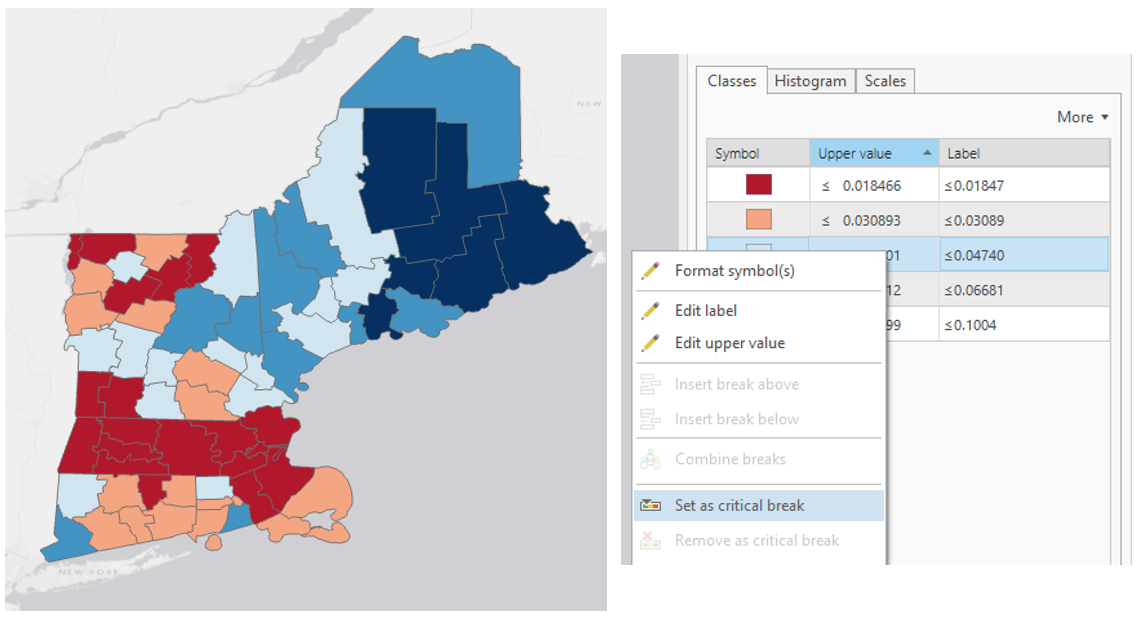
8. Create Maps (5 & 6) Unclassed vs. Classed
For the third set of maps, abandon your previously-selected class breaks. In this set of maps, you will compare the visual difference between a classed map and an unclassed map. Use the same sequential color scheme for both maps so they can be adequately compared. You should also use consistent line design, etc., so as to not distract from the primary difference of interest - the classification method used. Unlike with the first two sets of maps, you will not be mapping two different variables for comparison here. You will choose just one of the variables from your previous maps, and visualize this variable on both of maps 5 & 6.

For your classed map, choose any of the methods available in ArcGIS Pro – but have a reason why! You will discuss your reasoning for choosing one of these methods in your write-up for this map pair.

9. Final Deliverables
For this lab you will submit three layouts, each containing a pair of maps. You will also submit a write-up document, with a 100+ word explanation of your design (data classification and color) choices for each map pair. Make sure to also design a neat and useful layout - see Lesson/Lab 2 for layout design advice.

9.1 Example Map Pair #1
Don’t copy this (poor) layout design – use your own knowledge and judgment. Clean up titles, marginal elements, alignments, etc. – use either portrait or landscape, whichever you prefer. Note that elements which refer to both maps (legend; north arrow; scale bar) need only be included once.
 Visual Guide Figure 5.13. Example Map Layout #1
9.2 Example Map Pair #2
Don’t copy this (poor) layout design – use your own knowledge and judgment.
 Visual Guide Figure 5.14. Example Map Layout #2
Use convert to graphics to manually improve your legend. Use a text box to annotate your critical class/break!
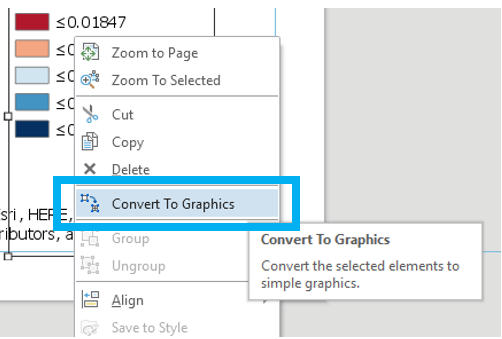 Visual Guide Figure 5.15. Using the Convert to Graphics function.
9.3 Example Map Pair #3
Don’t copy this (poor) layout design – use your own knowledge and judgment. Remember this map pair uses the same data for each map – it is demonstrating the effects of classification. Your goal should be to make a clean, useful legend for each map - make it look better than the legend design below.
 Visual Guide Figure 5.16. Example Map Layout #3.
10. Additional Tips
Think about color and what you are mapping. Are you mapping insured or uninsured? Choose colors wisely – what do they represent?
Remember that you can employ text to explain your map! Use text sparingly but effectively – don’t be afraid to use convert to graphics and/or manually edit text and layout elements. When choosing a color scheme as well as when doing your write-up, keep in mind: the perceptual progression of your data should match the perceptual progression of your color scheme.


Credit for all screenshots is to Cary Anderson, Penn State University; Data Source, US Census Bureau.