Lesson 2 Lab
Lesson 2 LabLettering and Layouts
This week, we'll revise and combine our two maps from Lab 1 into one neat, well-designed layout with labels, a legend, and marginal map elements (e.g., scale bars, north arrow). You'll get to build off your hard work from last week and apply new knowledge from this week: typographic design, label symbology, and layout design.
This lab, which you will submit at the end of Lesson 2, will be reviewed/critiqued by one of your classmates as part of Lesson 3 (critique #2). Receiving critique of your work and using this to inform future cartographic design decisions is an important skill to develop. Giving feedback to others also often teaches you new ways of looking at your own and others’ map designs.
Lab Objectives
- Create appropriate labels for map features using Maplex automated labeling tools in ArcGIS Pro.
- Apply labels to your maps from Lab 1, designing to show both category and hierarchy.
- Apply what you learned about multi-scale map design in Lab 1 by creating both a main map frame and an accompanying locator map.
- Use visual hierarchy when designing symbols, labels, a legend, and a layout.
Overall Lab Requirements
For Lab 2, you will create one complete map layout, with a main and a locator map.
- Modify your maps from Lab 1 to create new maps—you will need to make significant changes for them to work at the new scales; you may start over from the beginning if you wish.
- The best approach is likely to design your main map first, then create a copy of this map which you will modify/generalize/redesign as appropriate for the smaller (1: 1,000,000) inset map scale.
- Use these approximate scales: 1:40,000 for the main map, 1: 1,000,000 for the locator map.
- You can tinker with your design over top of ArcGIS Pro’s light gray canvas basemap—the same basemap we used in Lab 1 but please turn off the Esri basemap before submitting your lesson.
- Use color as you wish—be cautious not to overuse it. There is no restriction on color use for this lab.
Map Requirements
Labeling Requirements
- Coordinate label appearance with feature symbol design.
- Create label types with style settings; use SQL queries create specific feature label classes.
- Remove all nonsensical labels, using SQL queries and other methods of feature removal.
- Use expressions to augment at least one category of labels with additional text and/or combine data attributes.
- Use label placement conventions for line and area features.
Map One: Primary Map (1:40,000)
- Examine your map and develop at least four or more label categories based on the map feature classes (e.g., Highways, Lakes, Streams, Boundaries, etc.). You can use other names for your label categories.
- Within each label category, create one or more label classes. The label classes should demonstrate a hierarchy to a label category (e.g., interstate, collector road, local road, etc.).
- Create at least eight different label classes in total. You will likely have more label classes in some label categories than others.
- For this lab, a map feature class is considered different if defined differently in the data (e.g., local and collector roads have different TNMFRC codes; lakes and reservoirs have different FTypes). Note that while some map feature classes have a different FType, for instance, this difference doesn't necessarily mean that those features need to have unique label designs (e.g., what is the practical difference between a lake and reservoir on your map?). You do not need to create a unique label class for every map feature class, just the eight in total as described above. Some of the geographic areas in LA, for example, don't have a tunnel.
- The locator map should be placed on the same layout as the main map.
- Label prominent map features as needed at this scale.
- Remember that this inset map is needed to provide locational context for people unfamiliar with the location you are mapping—design features and labels accordingly. Also, be judicious in how much information you show on your locator map.
Layout requirements
- Create two frames at different scales (main map and locator map). The main map should be larger in size than the inset map.
-
Create appropriate marginal elements:
- a north arrow for the locator map (confirm north is up in both map frames);
- two scale bars; use clean design and label with sensible numbers;
- a legend; design its style, placement, and descriptive text;
- a hierarchy of marginal text (e.g., title, subtitle, data source, your name, legend text, legend title) – not necessarily in this order.
- Create a balanced page layout (either portrait or landscape). Attend to negative space.
Lab Instructions
-
Open your project from Lab 1 and re-save with a new name (e.g., "Geog486_Lab2").
- If desired, you may re-download the zipped folder from Lesson 1 Lab and start the new map design from scratch.
-
Start designing!
- As in Lab 1, there are few steps that must be completed in order - map design is not a linear process. You are encouraged to reference the visual guide for additional instructions and guidance. If you have a question, comment, or suggestion, please post it to the Lesson 2 Discussion forum.
Grading Criteria
Registered students can view a rubric for this assignment in Canvas.
Submission Instructions
-
Submit one PDF—all elements must be included on one 8.5 x 11 page. Use the naming convention outlined below. You do not need to include a written statement or explanation with this lab assignment.
- Map Layout: LastName_Lab2.pdf
- Submit the PDF to Lesson 2 Lab for instructor and peer review.
- Note: Critique/peer review of the Lesson 2 assignment will occur in Lesson 3 (critique #2).
Ready to Begin?
More instructions are provided in Lesson 2 Lab Visual Guide.
Lesson 2 Lab Visual Guide
Lesson 2 Lab Visual GuideLesson 2 Lab Visual Guide Index
Part I: Labeling
- Starting file
- Clip layers
- Finding names in your data
- Adding labels to your map
- Editing label classes
- Designing label symbols
- Positioning label symbols
- Creating label expressions
Part II: Layouts
Part I: Labeling
I.1 Starting file
Start this lab by opening your project file from Lab 1. Use “Save As” to create a new project for Lab 2. After this, you'll be ready to add labels!

I.2 Clip layers
In this lab, we'll be doing a lot of work with dynamic labeling in ArcGIS Pro. This is computationally heavy, especially when it comes to the label placement engine trying to work out labels for every single local road in a huge statewide dataset. So before we get started with labeling work, we are going to clip out the area we truly need to work on for our map. There are multiple approaches for this, but the one we'll use is to create a new graphics layer and then set the map properties such that it uses a rectangle we draw on the graphics layer to clip the map contents. This won't change anything to the underlying data, as it only changes how it's rendered.
We first need to add a graphics layer to the map, which can be done by locating Add Graphics Layer in the Layer section of the Map toolbar. Next, I recommend zooming out from your map extent somewhat beyond what you need for your final 1:24,000 or 1:100,000 scale. I zoomed out to 1:125,000 for example. We want to clip an area a bit beyond what we need for our final layout to give us some buffer. Once you've done that and have created a new graphics layer, you can insert a rectangle as shown in Figure 2.2.

Draw a rectangle that includes everything you need for your map layout and a bit of a buffer beyond that. Once you have a rectangle on your graphics layer, you can now use the Map Properties to select Clip Layers and clip to an outline (Figure 2.3). You should select the graphics layer to use as an outline. Apply that change and check out how it has now clipped your map layers to just show the data inside your drawn rectangle. You can repeat this process then for your map designs at other scales, and you can revert back to your original data at any time by just returning to the Clip Layers settings and selecting No Clipping.

Changing the map properties is one way to clip layers, and it's non-destructive to your data. If you want to try the destructive approach, you can use the analysis tools in ArcGIS Pro to clip layers permanently. You would need to re-import original layers from the project data we provided you in Lab 1 if you decided to change your mind on a clipping extent, but the advantage of destructive clip editing is that you can gain significantly more computational headroom since you're not handling the "extra" data anymore. You can use a batch process as demonstrated here by folks at Esri if you want to give this a try.
I.3 Finding names in your data
We do not have to write our own labels for map features - they're already in our data - we just need to make them visible. Map features often contain multiple fields (data columns) with possible names, so we need to identify the best ones to use. To do this, open the attribute table for the layer you want to label. We can see the FULL_STREE field seems like a good option to start with for this layer.

I.3 Adding labels to your map
To turn on labels for a layer, right-click the layer and toggle labeling on by clicking Label. To edit those labels, open Labeling Properties as shown below. This will open the Label Class pane. In this pane, the expression box shows how your labels are being drawn from a field in the attribute table. In some cases, ArcGIS Pro will correctly identify the best field to use for labels. In other cases, it will not, and you will have to alter the expression manually. We will use FULL_STREE field we identified earlier.

I.4 Editing label classes
Begin editing the style of your labels with the Labeling menu in the ribbon shown below. The default label symbols available are good starting points - they will help give you an idea of how to best design your own labels.


You should also create label classes using this top menu bar. Similar to when we classified roads by their TNMFRC code in Lab 1, we create label classes so that we can create different types of labels within a feature category, and use these classes to design our labels with visual order and/or category.

When you create a label class, all you are creating is a class with a name - ArcGIS Pro will not automatically recognize, for example, that a label class named "Interstates" should only be applied to roads which are interstates. We will tell ArcGIS Pro this using SQL (structured query language).
In our data, all interstates have a TNMRC code of 1 (this code signifies the interstate road-type; see Figure 2.10). We can define this label class using the SQL view in the label class pane. See below:

Note: The Label Class Pane can also be used to create label classes, instead of the top menu bar. You may find it more helpful to use the Label Class Pane for most labeling tasks.
If you forget which TNMFRC code refers to which road type, you should refer to the image below. You can also open this view in your project - your road features should still be classified by TNMFRC code, so viewing it in the symbology pane should create a view similar to the one below.

You should create a different label class for each road type for which you wish to have a different type of label. This includes small differences, such as font size. You do not necessarily have to create a different label class for every road type, but you will likely have several (e.g., local road, collector road, highway, etc.). You should reference the lab requirements page to ensure that you have created enough different label classes throughout your map.
Once you create your label classes, you can switch back and forth between them while editing using the Class dropdown menu. Note that if you create multiple label classes, you will need to define all of them, including the default label class. If you do not, you will have duplicate labels. For example, you may have Interstates labeled in one class, and all roads labeled in the default class - causing interstates to be labeled in both classes.
Another option is to delete the default label class - but be careful when doing so that you are maintaining all the labels you need.

I.5 Designing label symbols
Once you've created a label class, you can use the Symbol tab in the Label Class pane to edit its style. Shown here is the label symbol editing menu (left), and the formatting menu (right). These are used to change many aspects of a label's symbology - including fonts, sizes, spacing, color, etc. Highlighted in green are options I’ve found especially helpful – but don’t limit yourself to these. You should experiment with all options for symbol design—font, weight, spacing, etc. Recall from the lesson content that line spacing (leading) can be a negative value.

HINT: As you work with the labels, you may find see that there is a lot of "clutter." The number of labels can be overwhelming. When you initially try to label the roads layer, it will likely slow your computer way down to the point of stopping (or at least appearing that it stops). To help reduce the clutter, consider using the select tools in ArcGIS Pro to select roads by attribute or by location and then export the selected data to its own layer. Then, work with just that layer when labeling. This is a quick way to remove some of the road clutter from the map. Simply "un"-symbolizing the layers does not prevent the roads from being labeled. Using this method to select roads that, for example, intersect with another feature or have one or two TMFRCs, can save you computing power (and frustration).
I.6 Positioning label symbols
In addition to changing the style of your labels, it is important to also assign how they should be positioned. Recall the lesson content on text placement - our goal for this lab is to place labels only with automatic rules. We will not be placing or adjusting labels by hand.
There are many positioning parameters you can adjust in the label position tab—try them out and watch how your labels change. There are a lot of useful options (e.g., Feature Weight) whose function may not be immediately clear to you - I recommend checking out the link at the end of this sentence to learn more about labeling with the ArcGIS Pro Maplex Label Engine.
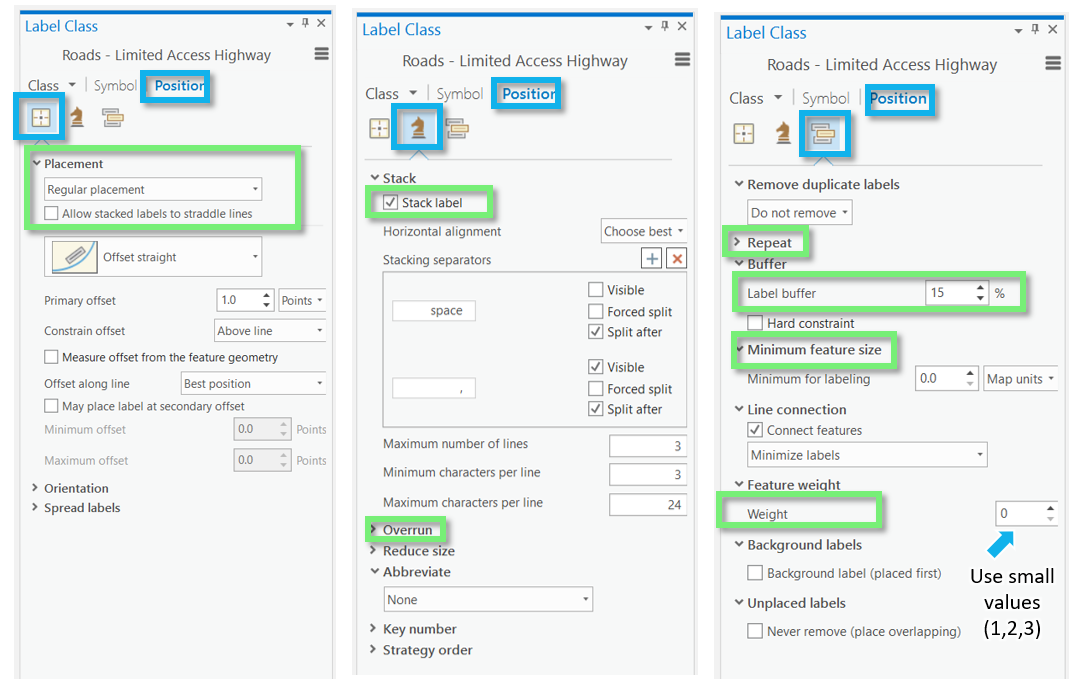
I.7 Creating label expressions
In addition to simply drawing a label from a feature's attribute table, you can edit label expressions using SQL to append words or other text for more descriptive labels. Don't worry if you haven't done any programming - you only need to make minor edits to create label expressions.

You can also use SQL to append additional text to a label from the attribute table. An example is shown below - though, in this example, you are creating quite a wordy label, which is generally not recommended.

Part II: Layouts
II.1 Putting it all together
Remember that you will be adding labels both to your large-scale (primary) map, and your small-scale (locator) map. Once you've finished adding labels to your primary map, you can add similar labels to your locator map. You can also save and then import a copy of your large scale map into your project, and then adjust it for the new smaller scale. This is the same process we used to create our second map in Lab 1.
To duplicate/re-import (a refresher):
- Save the most current version of your map as a map file (right-click on the Map in the Table of Contents (TOC)).
- Import that saved the map as a copy back into your project (Insert Tab --> Import Map).
- Change the scale of your new map, and design for this new smaller scale as a locator map.
Your final task is to create a Portrait or Landscape layout with your two maps, a legend, and text elements. An example layout design is shown below.

An example of a portrait layer is shown below: not that your map will also include a title, legend, etc. Additionally, these map examples are not shown in their final form - you are encouraged to use them for layout ideas, but you should not copy their designs.
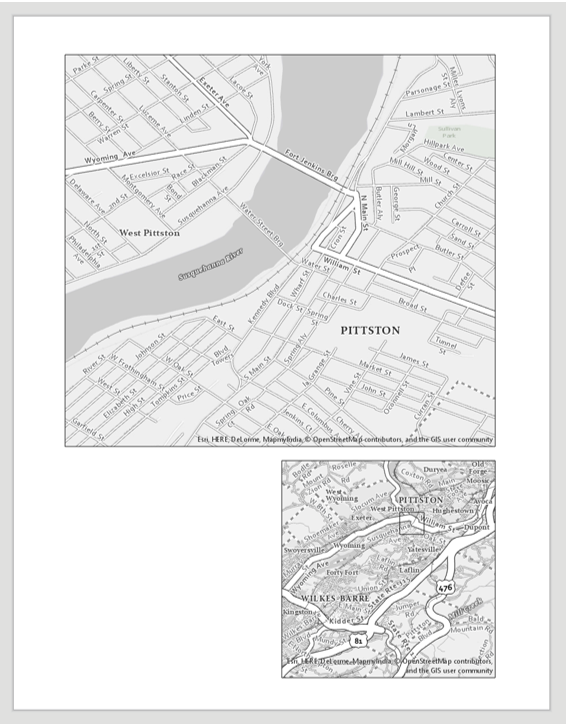
II.2 Build your layout
Before importing your maps, add guides for ½ inch margins – you should not include anything on the page outside of these margins. Note again that the examples below contain unfinished design—they should not be interpreted as examples of finished feature or label symbology.

For the locator map to be useful, you will need to insert an extent indicator. You should do so with the small scale map selected. This will draw a rectangle showing the extent of your large-scale map within the (larger) region covered by your small-scale, inset/locator map.

II.3 Add marginal elements
Marginal elements such as north arrows and scale bars should be added at this point. Keep your North arrow and scale bars simple and easy to read. Use “adjust width” to create clean scale bar values. You can also edit the color, font, label locations, etc., of all marginal elements. Reference lesson content for design ideas.
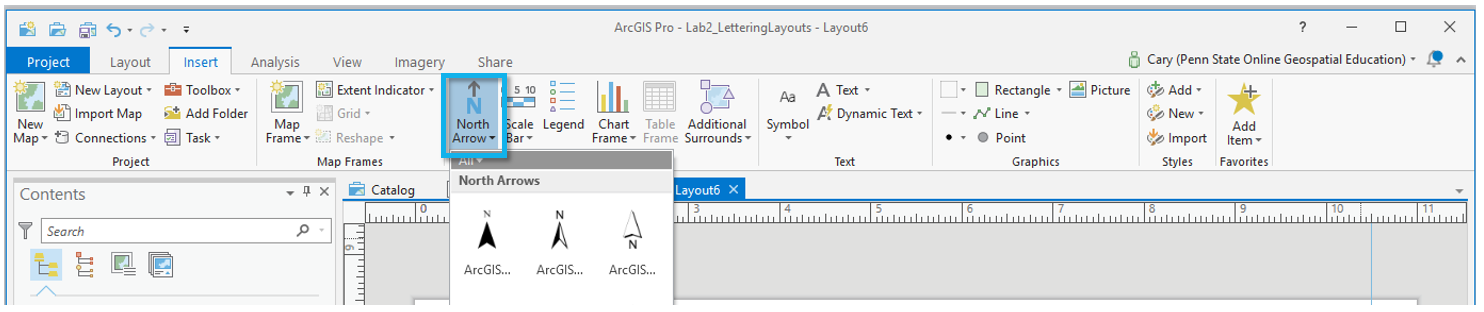

II.4 Create a legend
Another important component of your map layout for this lab will be its legend. Insert a legend with your large-scale map selected so it reflects your large-scale symbol design. Your locator map should use similar symbols, and therefore should not need a legend.

Right-click your new legend element in the contents pane, and choose “Properties” to edit.


You do not have to include every item in your legend, and you may want to change the names of some items significantly. Your goal is to create a comprehensible map. To change the design of different legend elements, select them from the drop-down menu in the Format Legend pane.

You can also make changes from the ribbon.

An efficient way to clean legend titles is to edit the layer titles themselves in the TOC—for example, by opening the properties dialog box for the county boundary layer and changing “GU_CountyOrEquivalent” to “County.”
Once you have made sufficient edits, you may want to disconnect your legend from the data by converting to graphics. This will give you more freedom over the design, but as your legend will no longer update dynamically if you update any map symbols, you should save this step until the end. You will have to “ungroup” the elements to edit them. Once you convert to graphics, you will need to right-click and “ungroup” multiple times to edit the elements for detailed design work. (Note that this is not a well-edited legend, just an example of one in process).

Once your legend is complete, there are only a few final touches to be made. Use the “Dynamic Text” dropdown to move the service layer (basemap) credits out of the map frame and place them elsewhere in your layout, for a cleaner look.

Don't be afraid to re-arrange your layout elements as you go! It may take quite a few tries before you find an optimal design.
Remember to create visual hierarchy for marginalia elements:
- Title
- Subtitle
- Legend Titles
- Legend Text
- Data Source
- Name
Below is an example of a landscape layout made from similar data - you will need to adjust your map to work with the assigned data and location. Note also that the map below may not include all required elements for this lab, but is an example of how your layout might look if you are on the right track.

II.5 Final tips and tricks
- You may use color, but do not over-rely on it. It is often advised to use all greyscale at first, and then add color later on for emphasis. Too much color on a map that is not well balanced will result in a poorly designed map.
- Don’t be afraid to change course while you work—try out different labeling and layout options before committing to a final design.
- Lesson 2 Visual Guide contains many design ideas and suggestions. Do not rely on the Guide to tell you how to design your map. Instead, use the instructions to learn how tools in ArcGIS Pro are used and then let your creativity guide your design.
- See the Lab 1 instructions if you need a refresher on how to design symbols or how to export your map. Remember, if your map uses a gradient fill, complex area fill patterns, or coastline effects, export the map setting the resolution to be no more than 150dpi.
- Check that your map meets all listed requirements by referring to the lab instruction document and rubric before you submit.
Credit for all screenshots (except where noted) is to Cary Anderson, Penn State University; Data Source: The National Map.